SRED.io
- 17+
- Microservices
- 100+
- Screens designed
- 70%
- Shorter pages
- 1
- First design system
About SRED.io
SRED.io is a platform that helps Canadian companies claim R&D tax credits from the work their teams already track in Jira, GitHub and Azure DevOps.
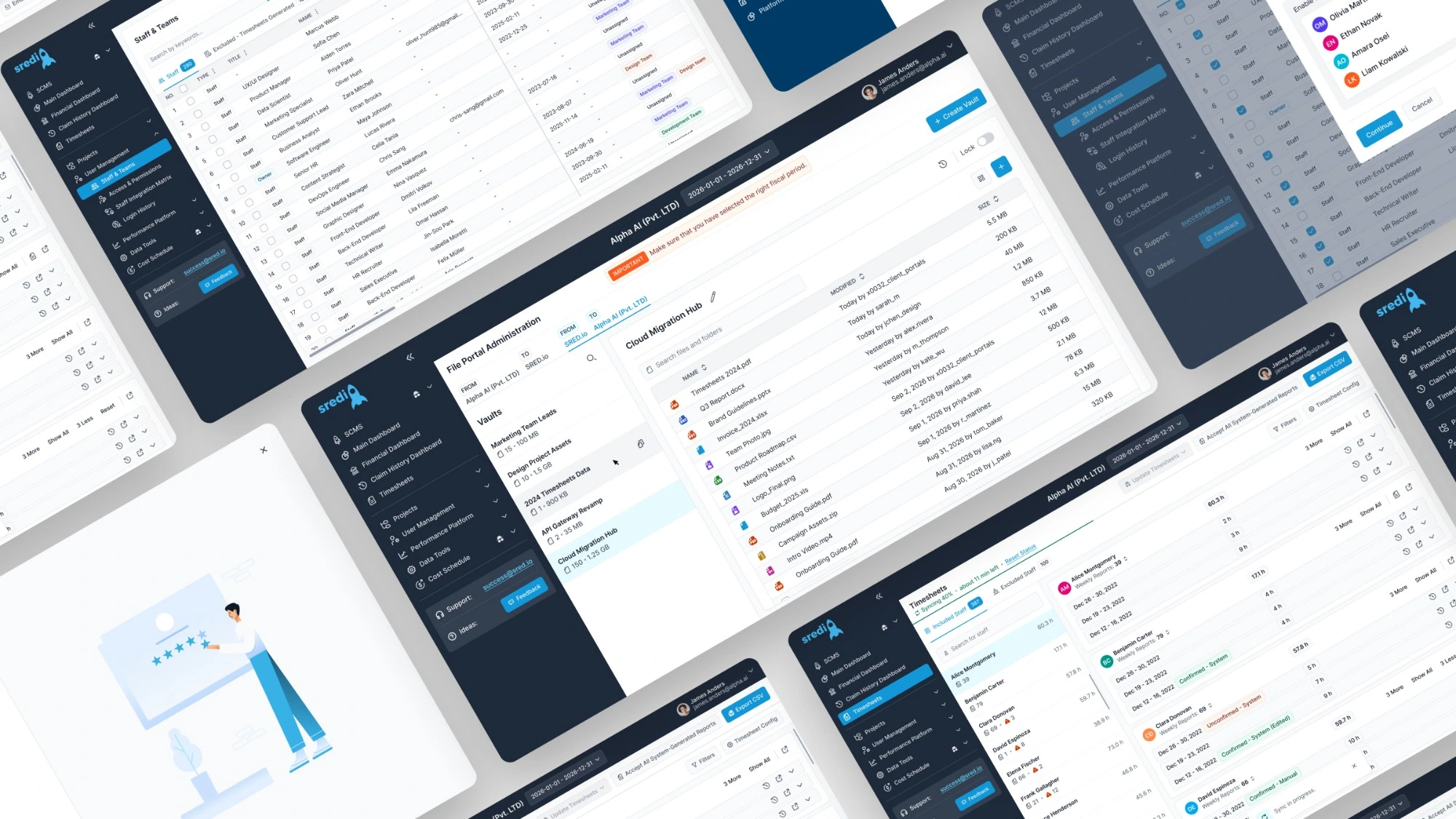
I joined as Lead Product Designer in July 2026. Every screen was a one-off and the pages ran on and on, so the first job was a system, then the services on top of it.
- Industry
- SaaS, SR&ED tax credits
- Location
- Toronto, Canada (remote)
- Role
- Lead Product Designer
- Tools
- Figma
 Flowbite
- Claude Code
- Cursor
What I did
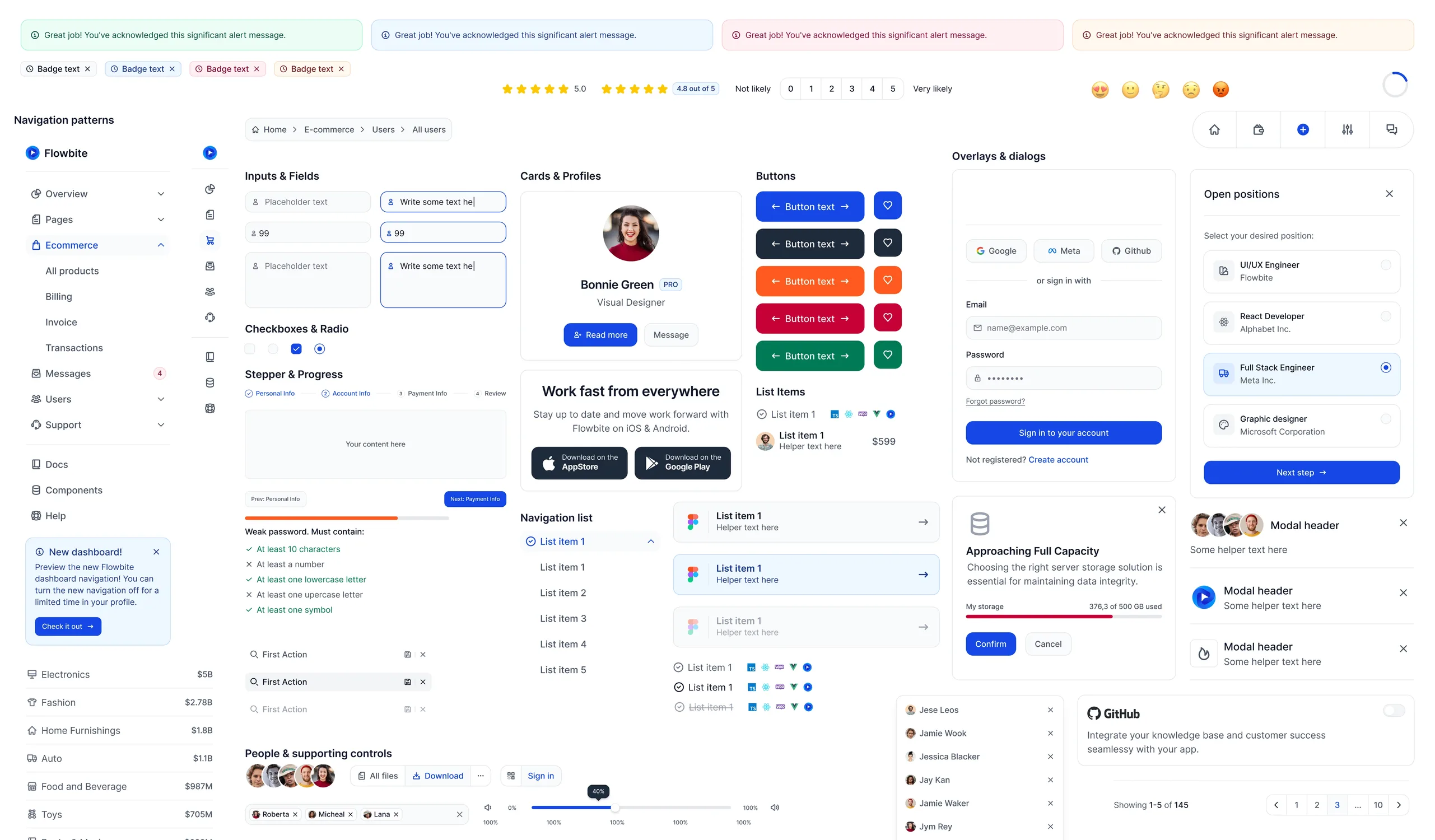
- Set up the platform's first design system on top of Flowbite, so engineers reuse components instead of rebuilding them.
- Cut the core pages by 70% by reworking the layout. Nothing was removed.
- Designed 100+ screens across 17+ microservices. Three of them are below.
- Took designs to production code with Claude Code in Cursor, linked to Figma.
The problem
Built fast, never designed
SRED.io grew function first. Pages ran long and made people scroll, every screen was a one-off, and the services shared no rules.
The platform needed a foundation before it needed more screens: one system every service could share.
The strategy
A system first, then the services
Fixing screens one at a time would have kept the one-offs. So the order was the system, then the layouts, then the services, with the developer in the loop.
- 01
Build the system
The platform's first design system, on top of Flowbite: one set of components for every service.
- 02
Shorten the pages
Reworked the layouts on the new components. Core pages came out 70% shorter, with the content kept.
- 03
Design the services
17+ microservices and 100+ screens so far, all from the same components.
- 04
Ship with the developer
Designs go to code through Claude Code in Cursor, linked to Figma, built with the front-end developer I manage.
Three problems, and how the screens solve them
Each one shown with the part of the design that handles it.
Challenge
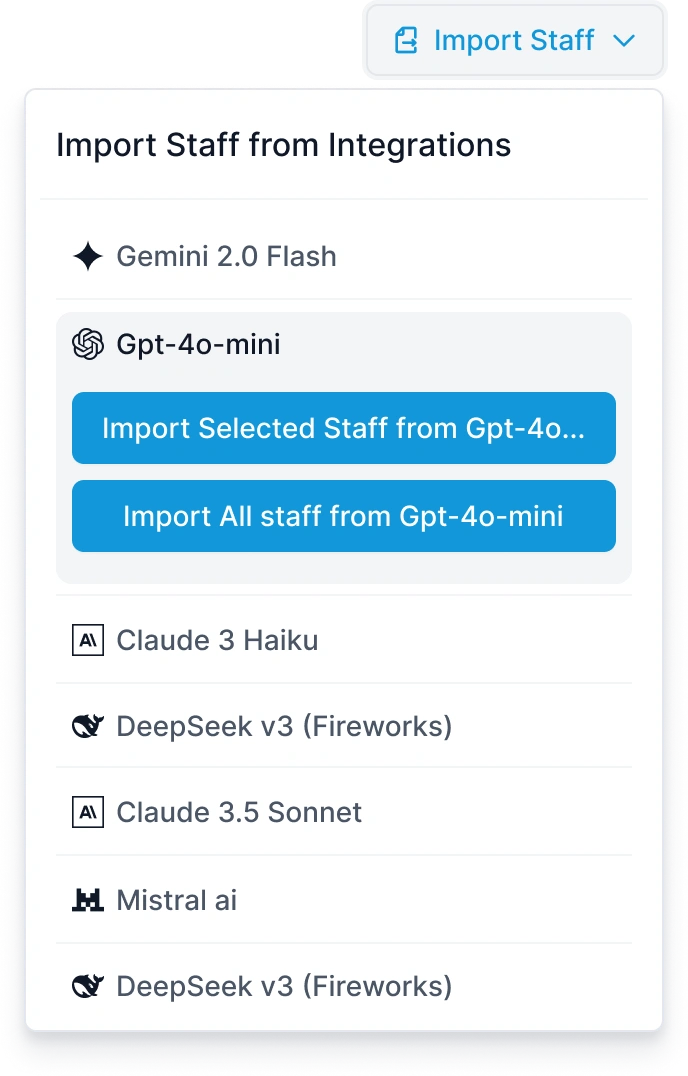
People arrive from several integrations
Solution
Each integration gets its own import: bring in only the staff you ticked, or everyone from that source. Whatever the source, the people end up in one list.
Challenge
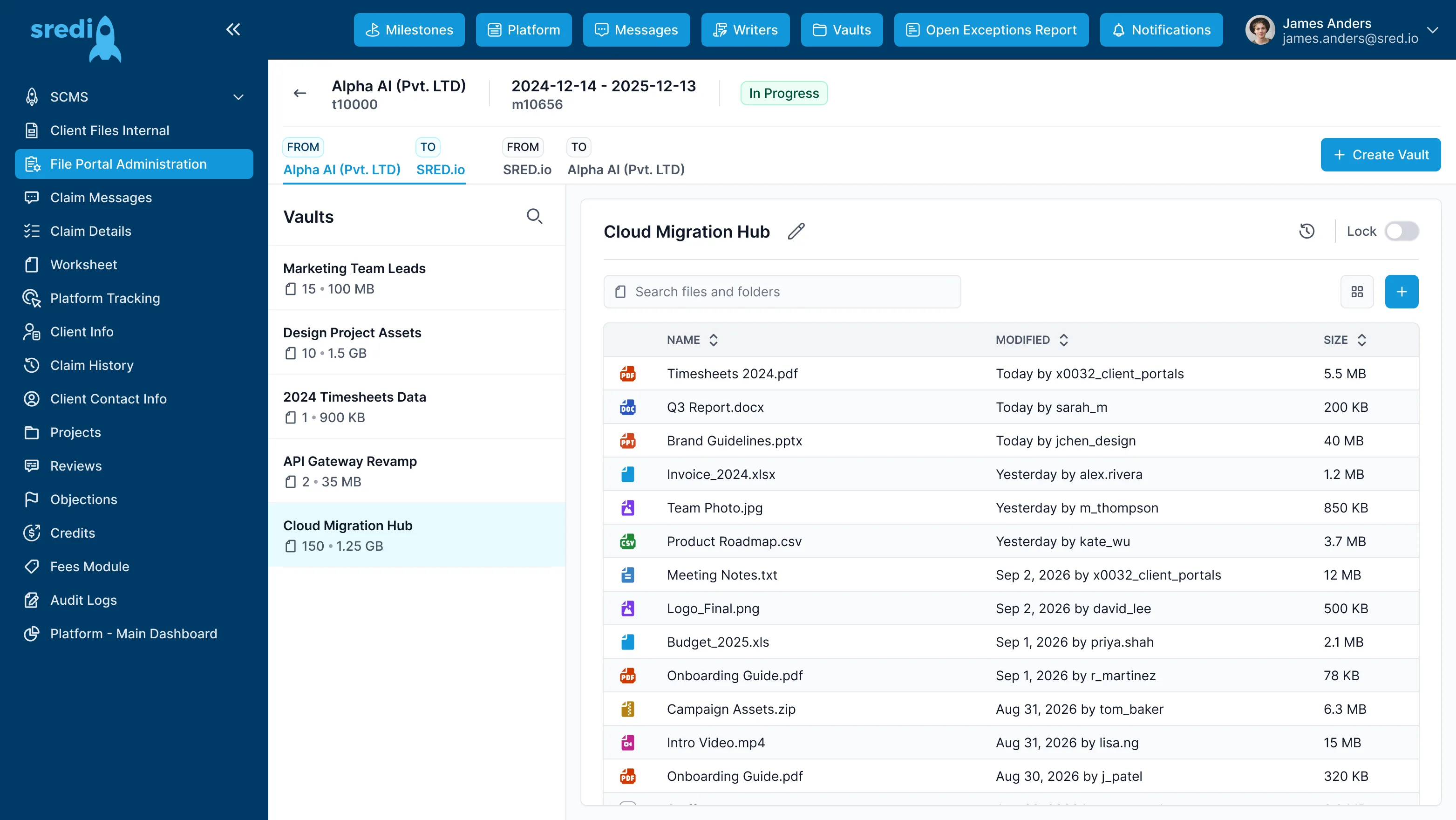
Pages that scrolled on and on
Solution
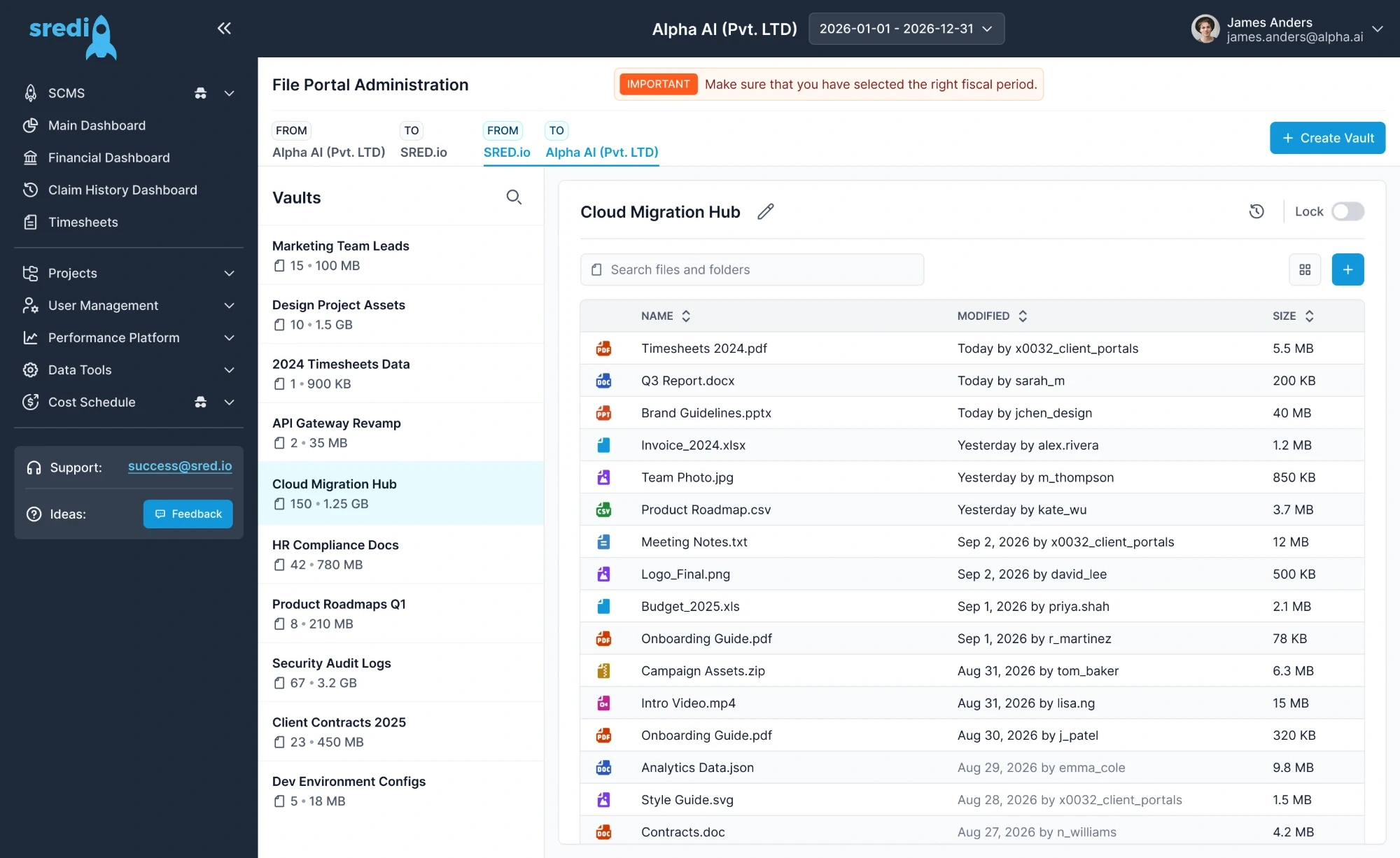
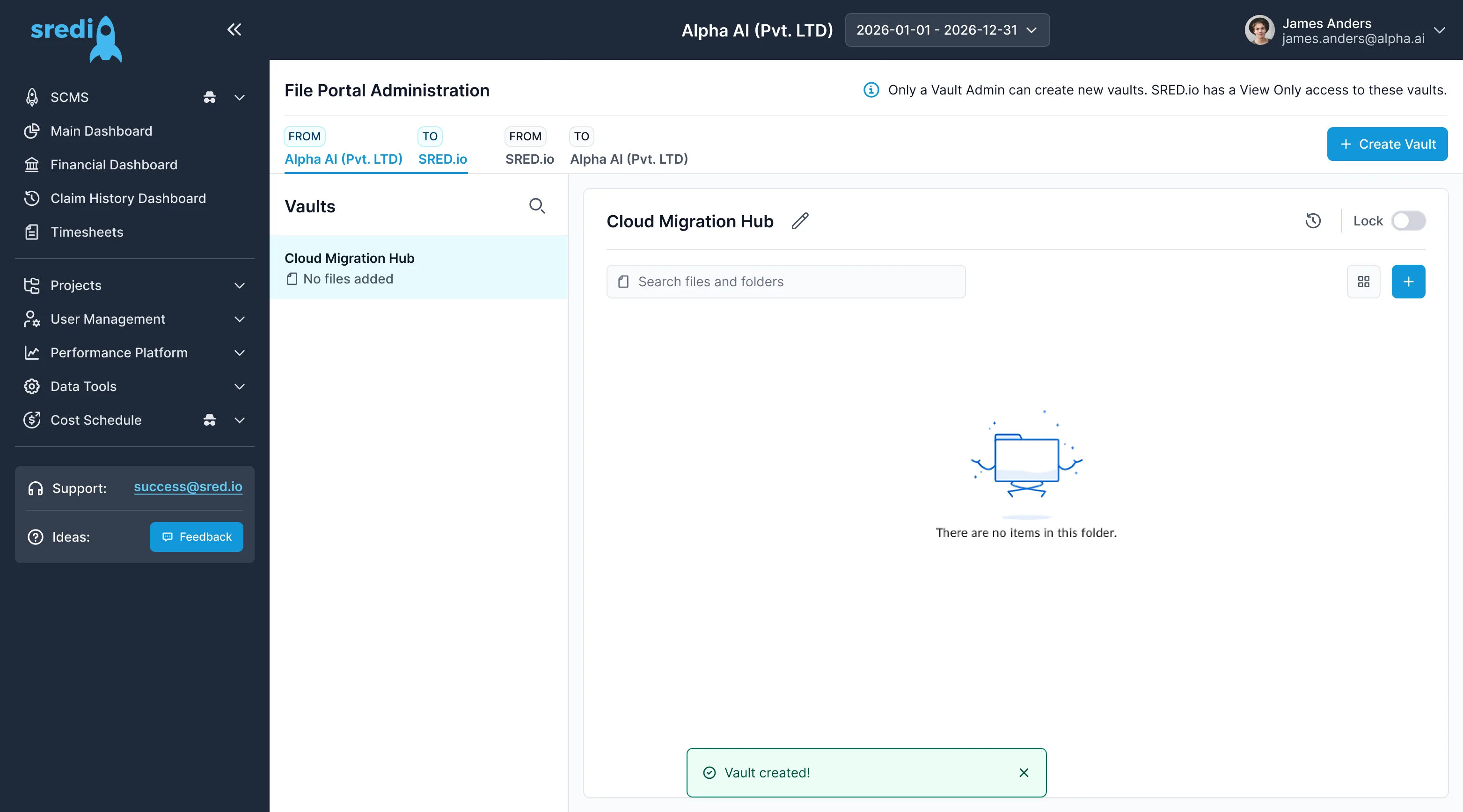
I rebuilt the layout on the design system. The vault list and its files now share one screen, and the core pages came out 70% shorter with nothing removed.
Challenge
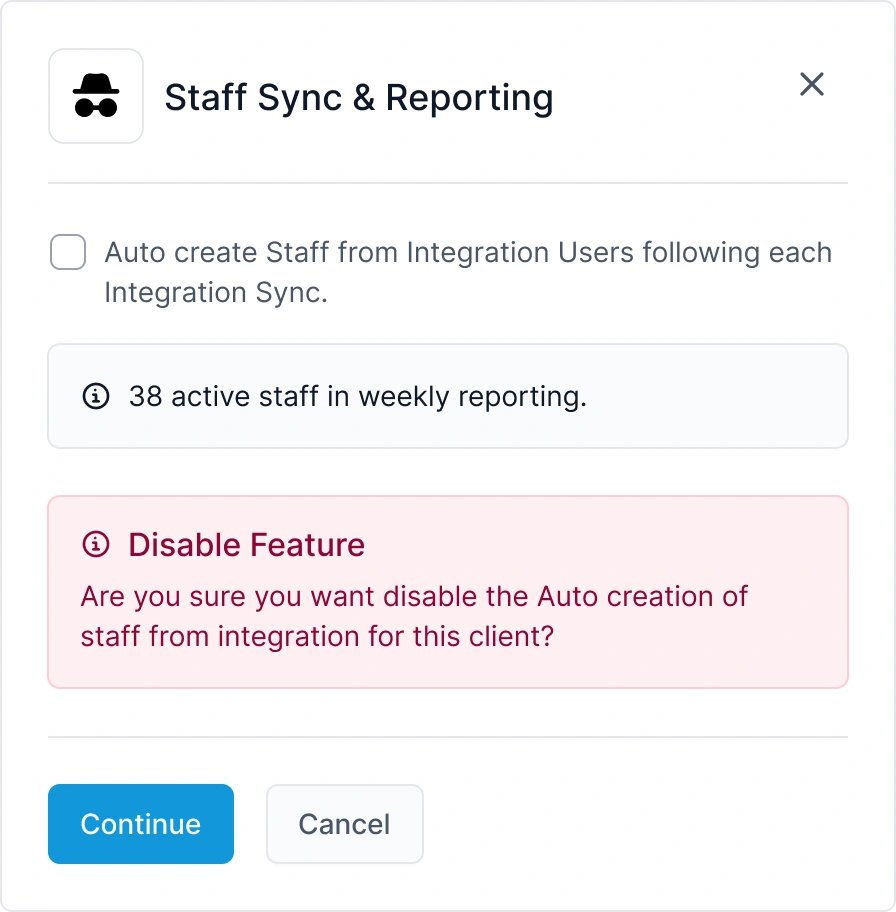
A setting that adds people on its own
Solution
Switching it on or off is a deliberate step. The modal says what it does, shows how many active staff are in weekly reporting, and waits for a Continue before anything changes.
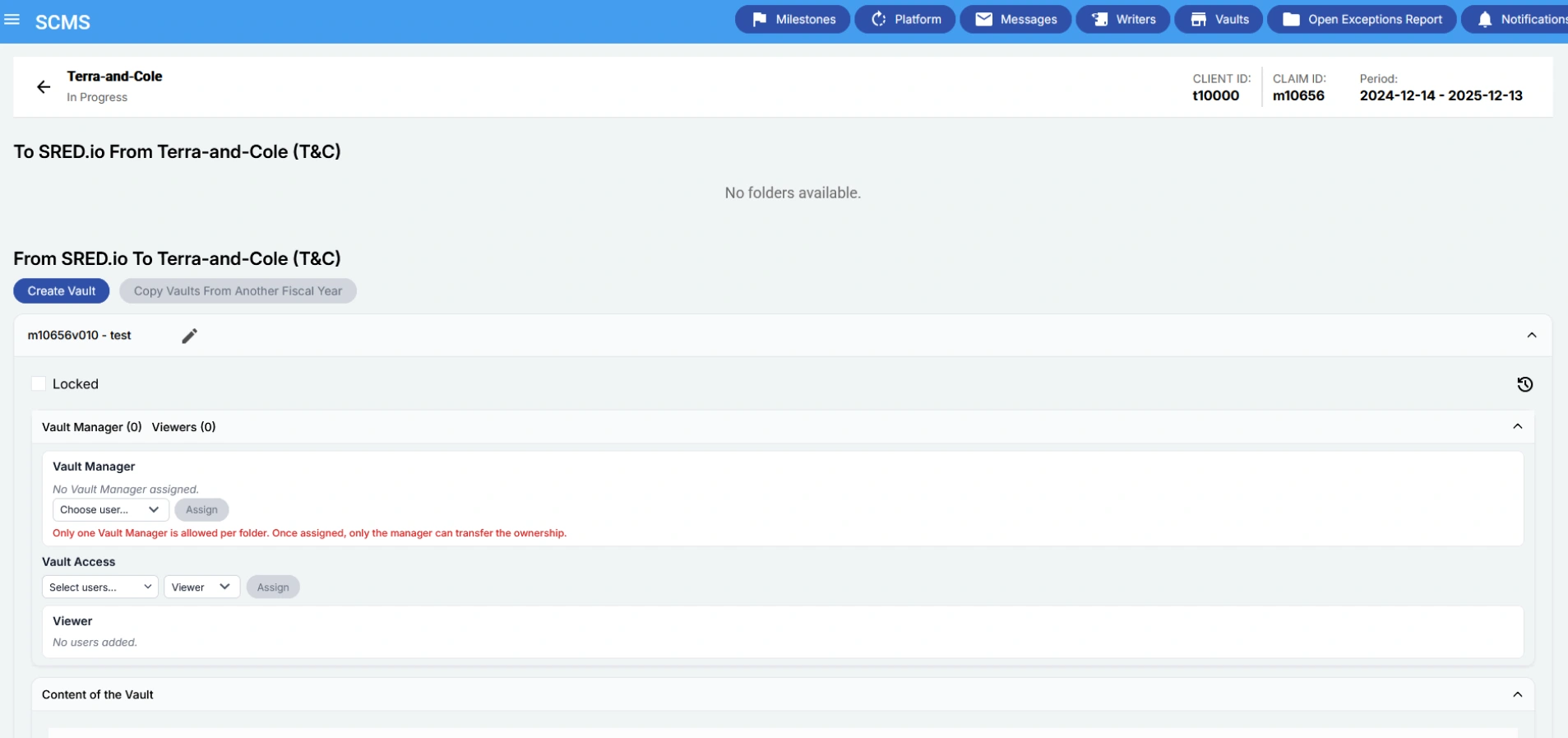
File vaults: before and after
Before, every vault opened as a long form: manager, access and viewers first, the files far below. Now the vault list sits on the left and the files of the chosen vault on the right, on one screen.
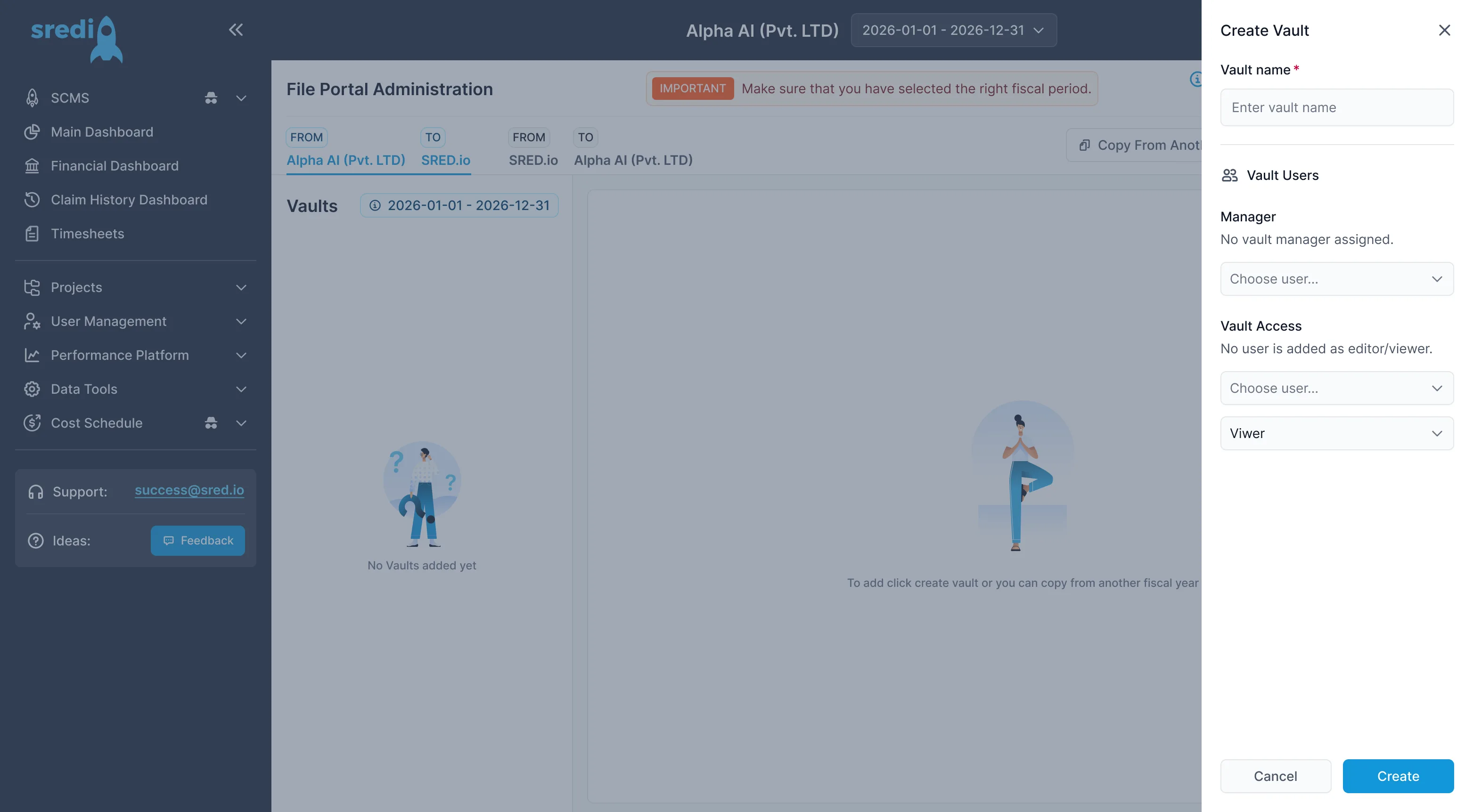
File vaults
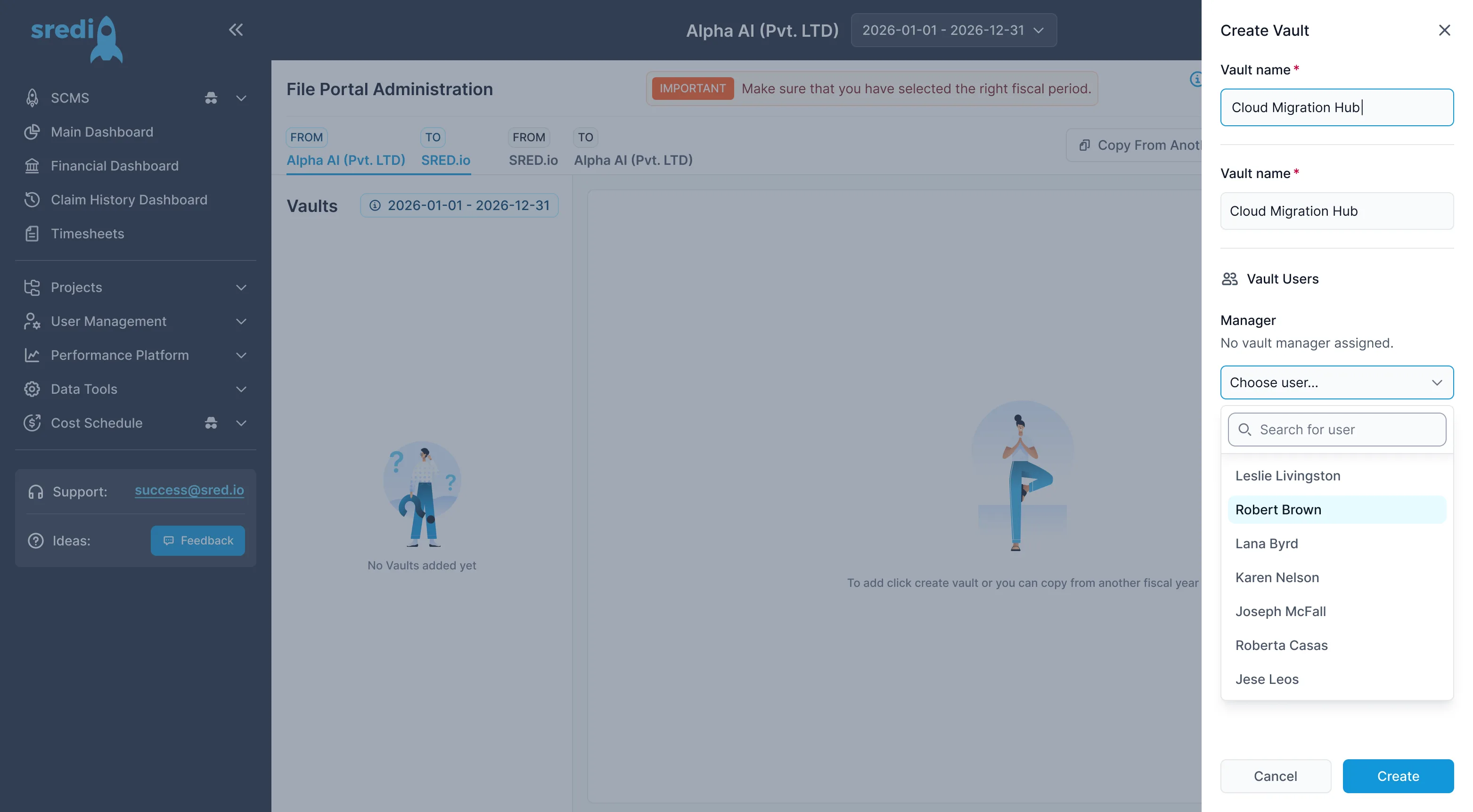
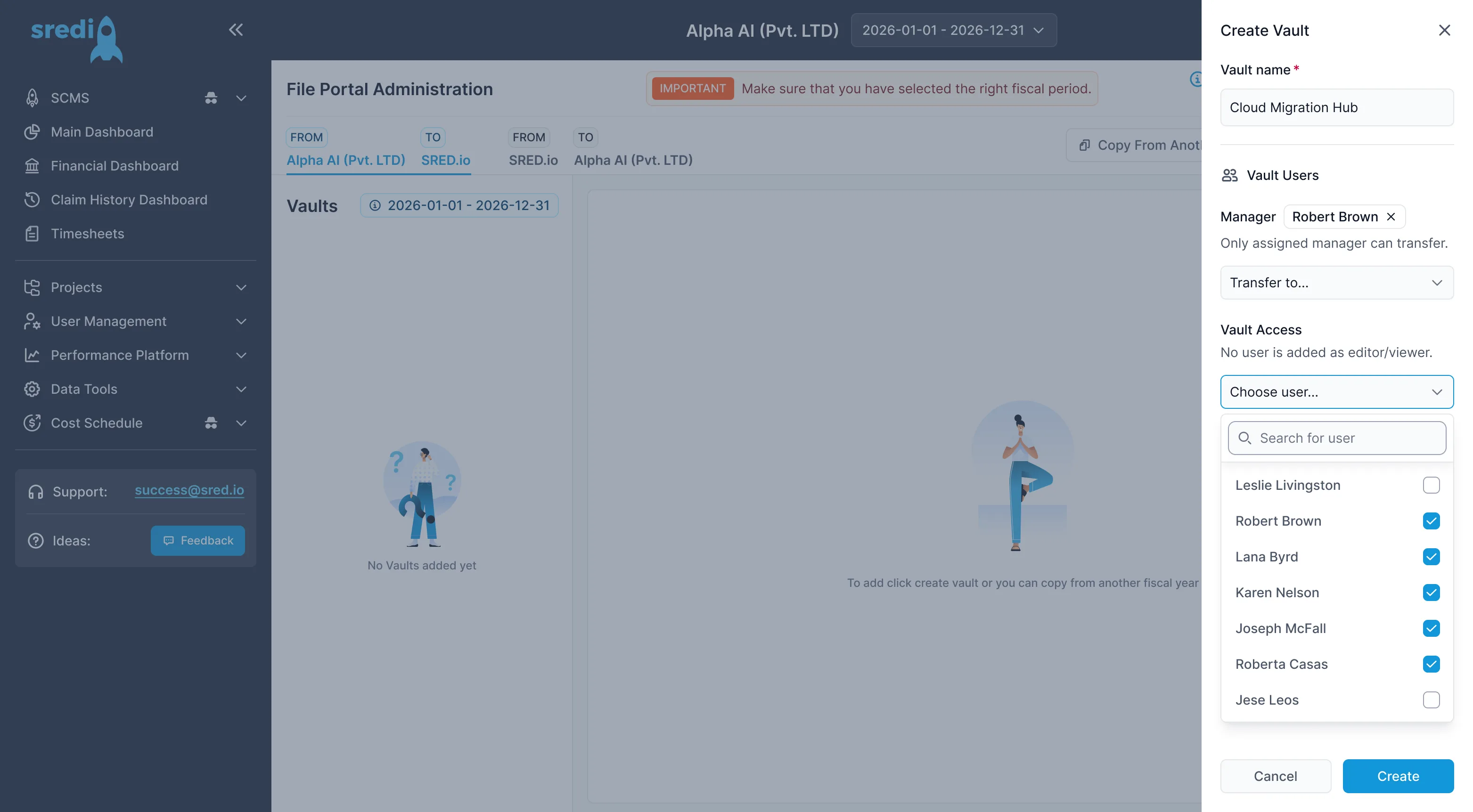
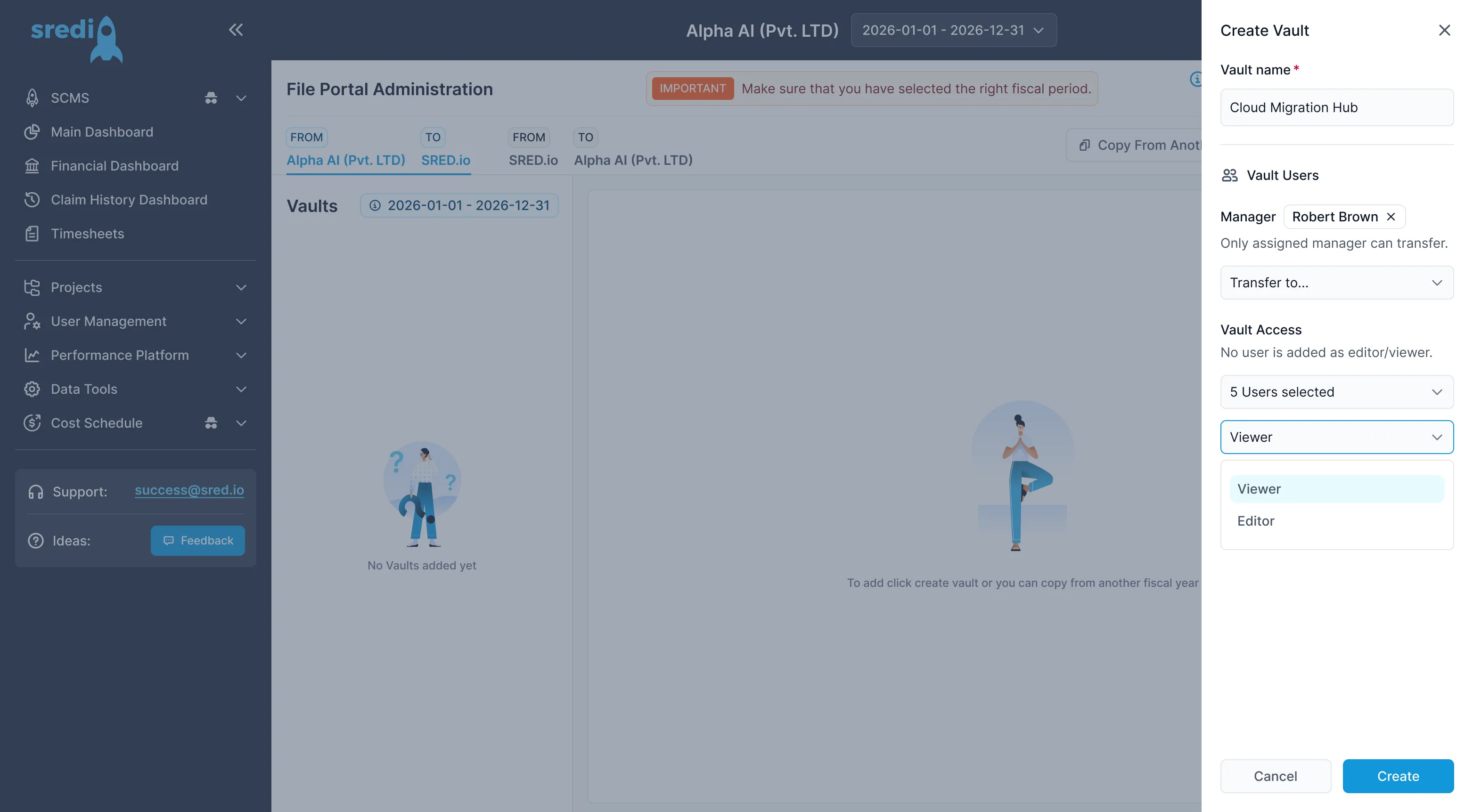
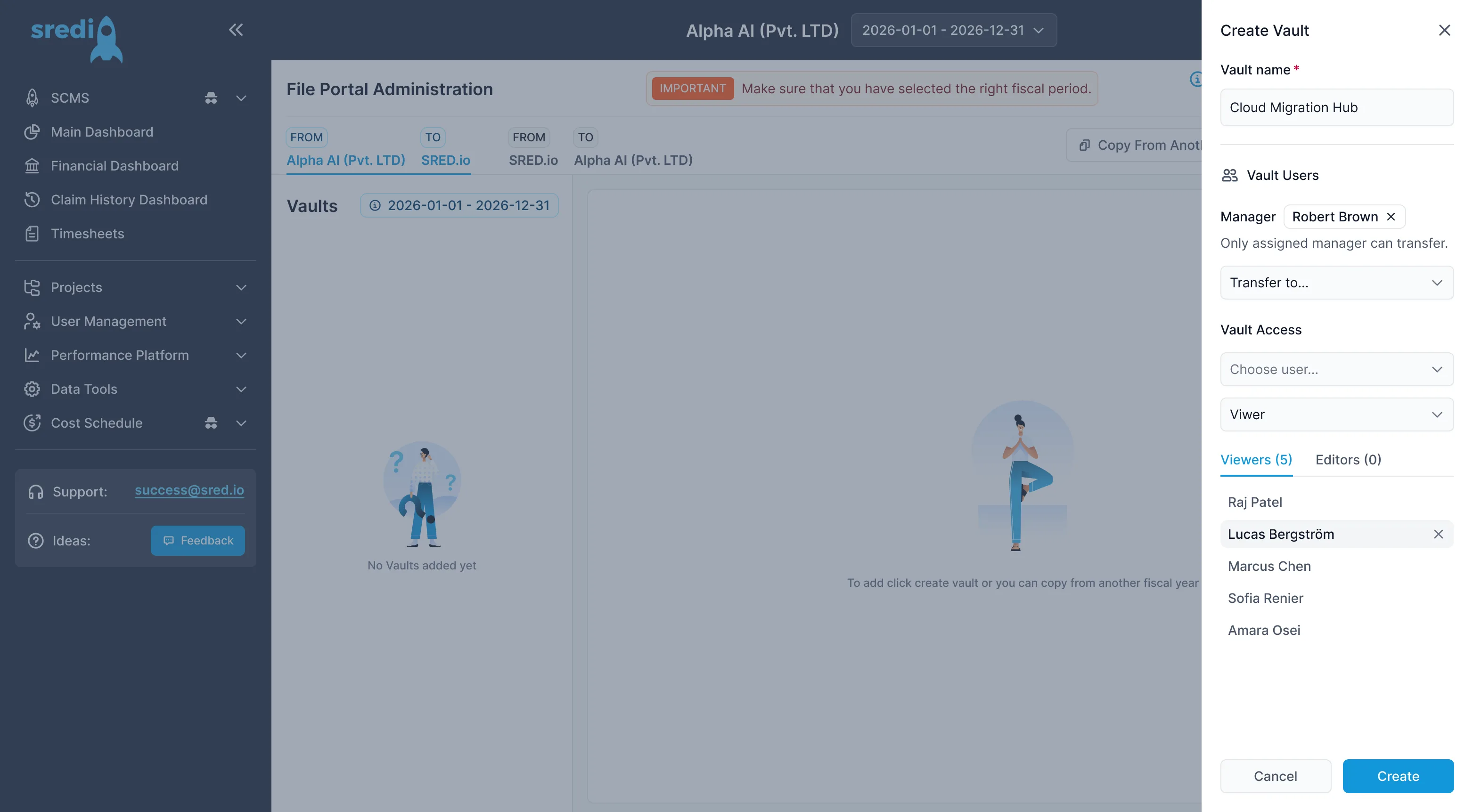
Only a Vault Admin can create a vault, and SRED.io staff only get view access. So the panel asks for a name, a manager, then who can view or edit.
Staff & Teams: the list
One list for everyone on the claim. Four things to notice.
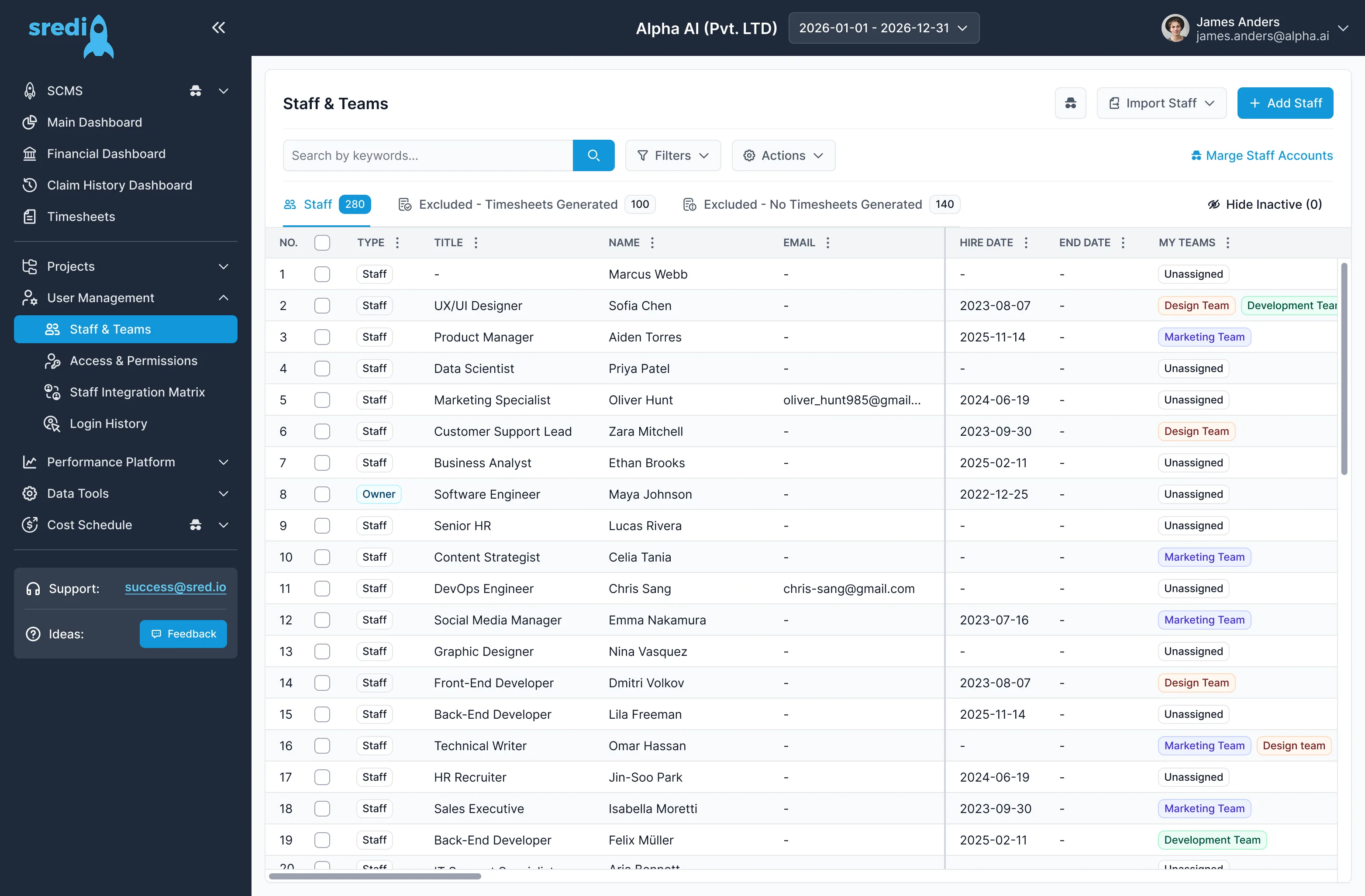 Fiscal periodThe period sits in the header of every screen.Filters and actionsSearch, filter, and an Actions menu for the teams.Three groupsStaff and two excluded groups, each with a count.Merge accountsDuplicates merge from one link at the top right.
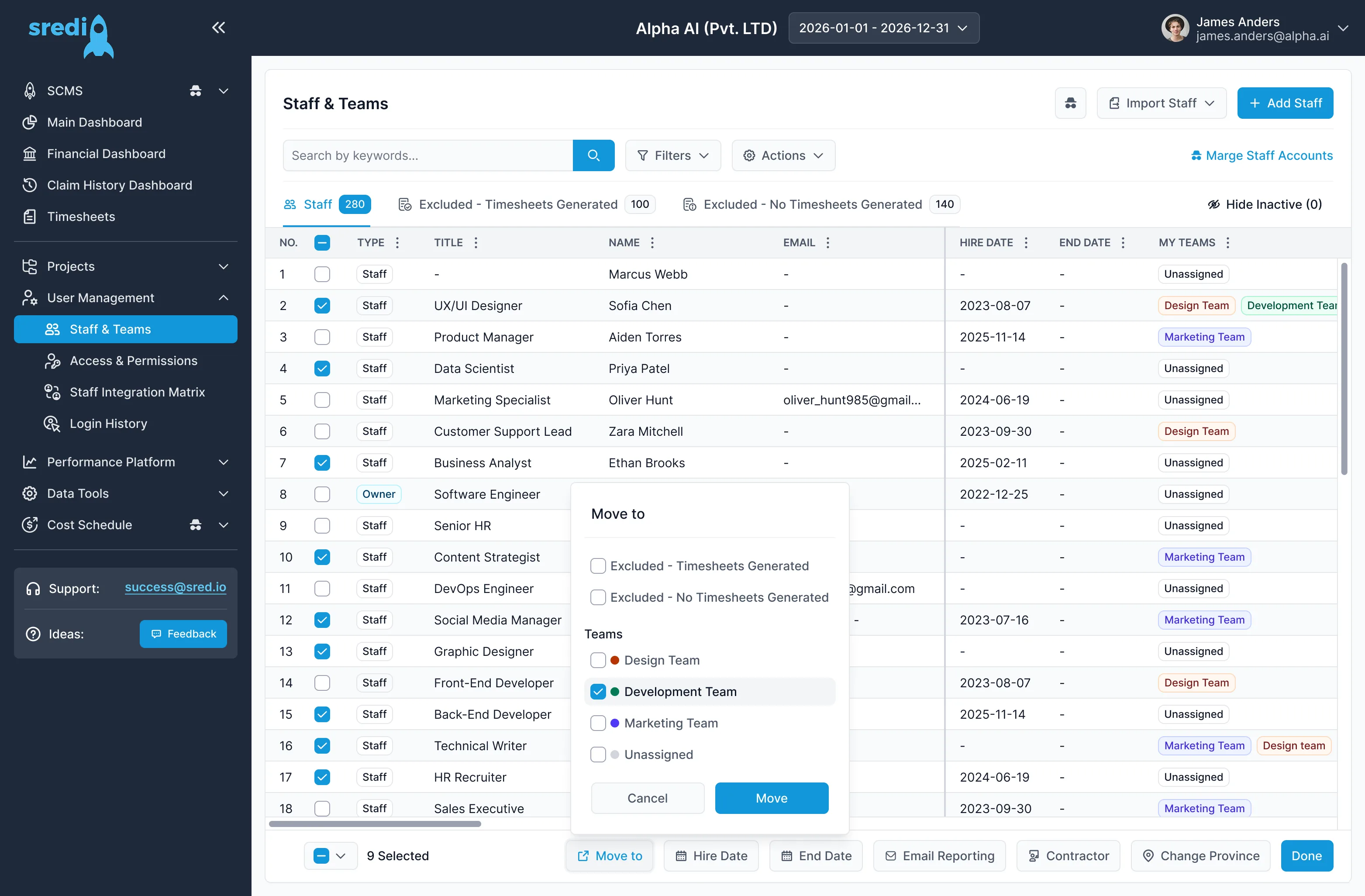
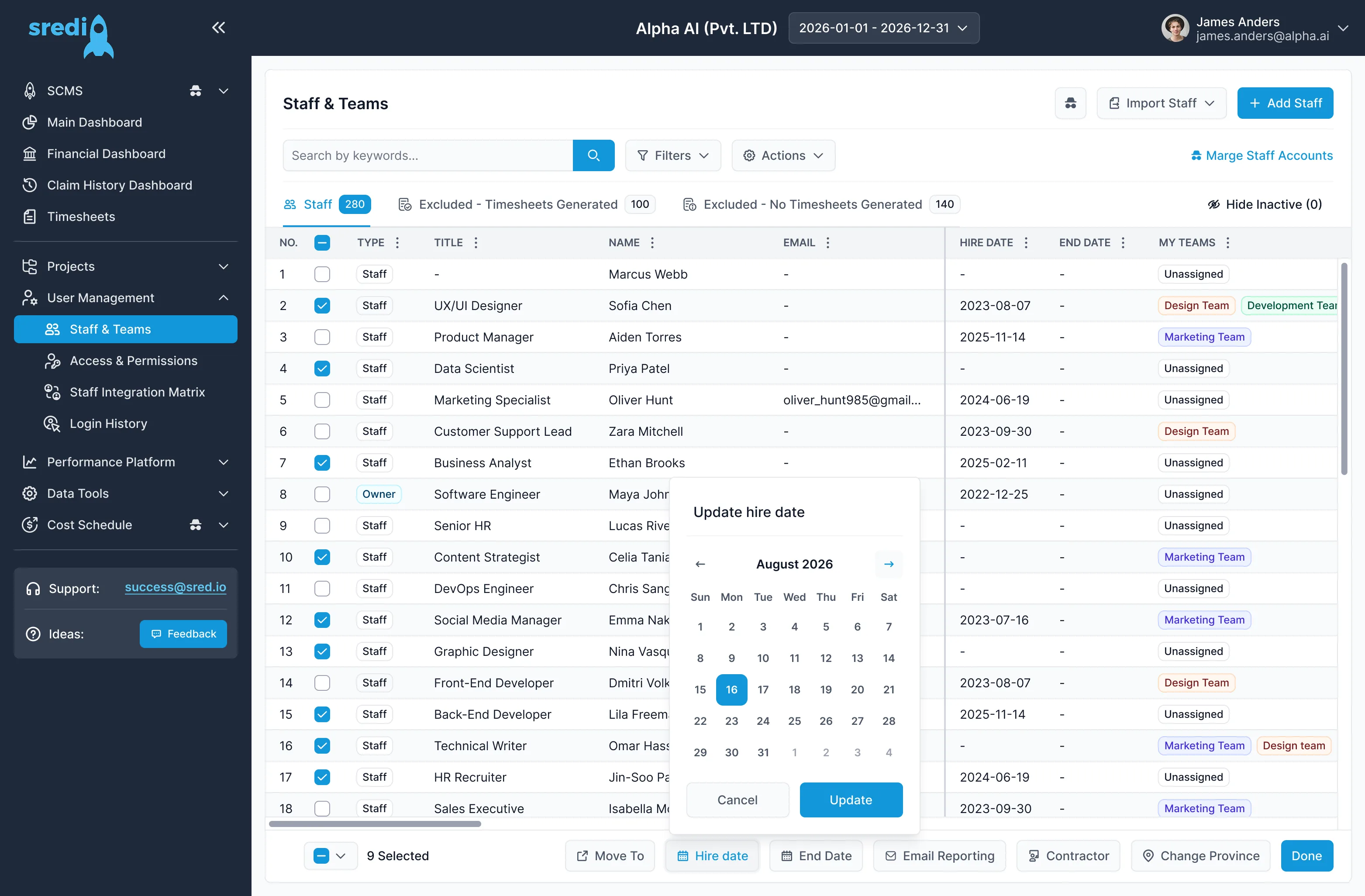
Staff & Teams: bulk actions
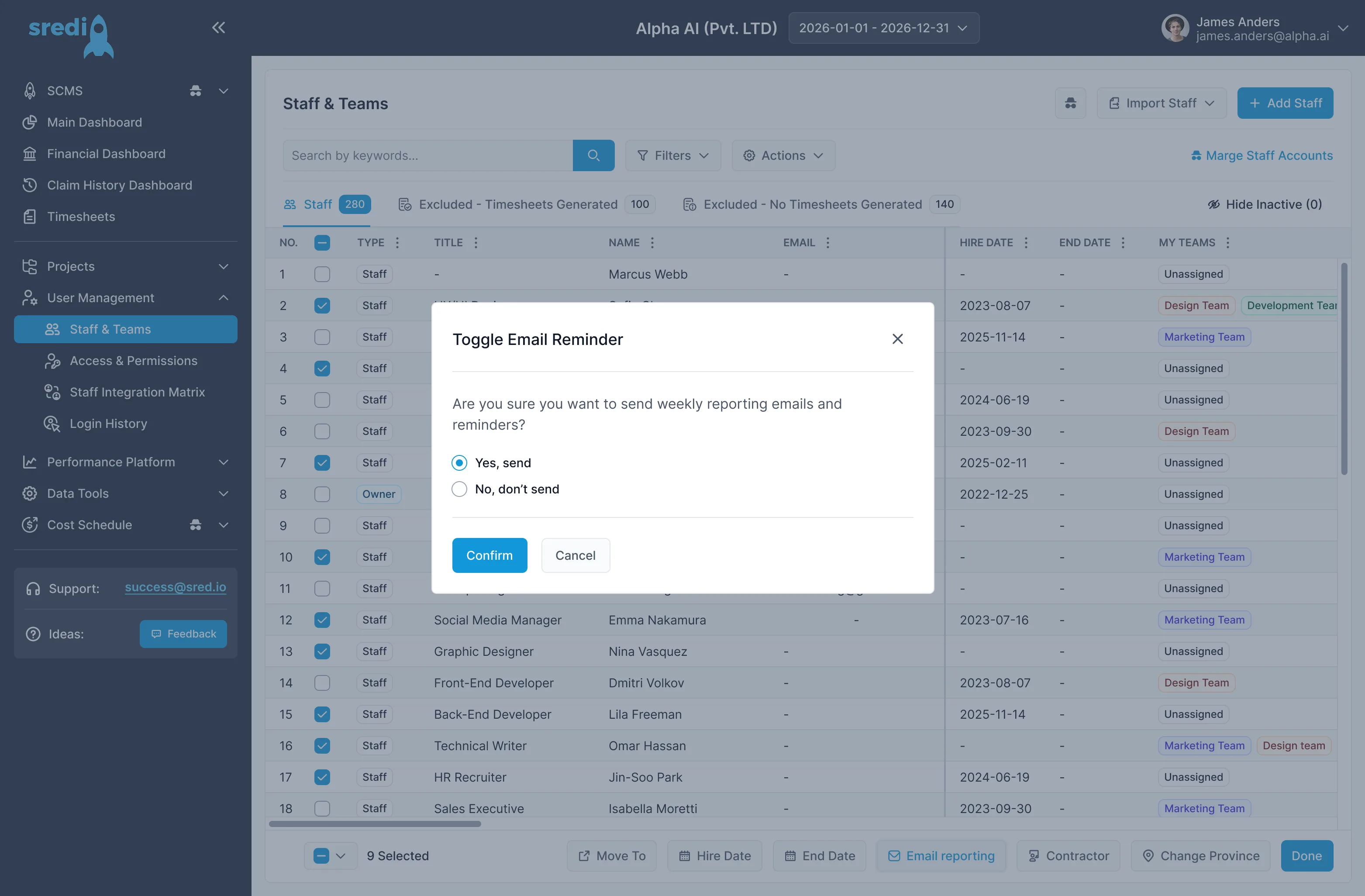
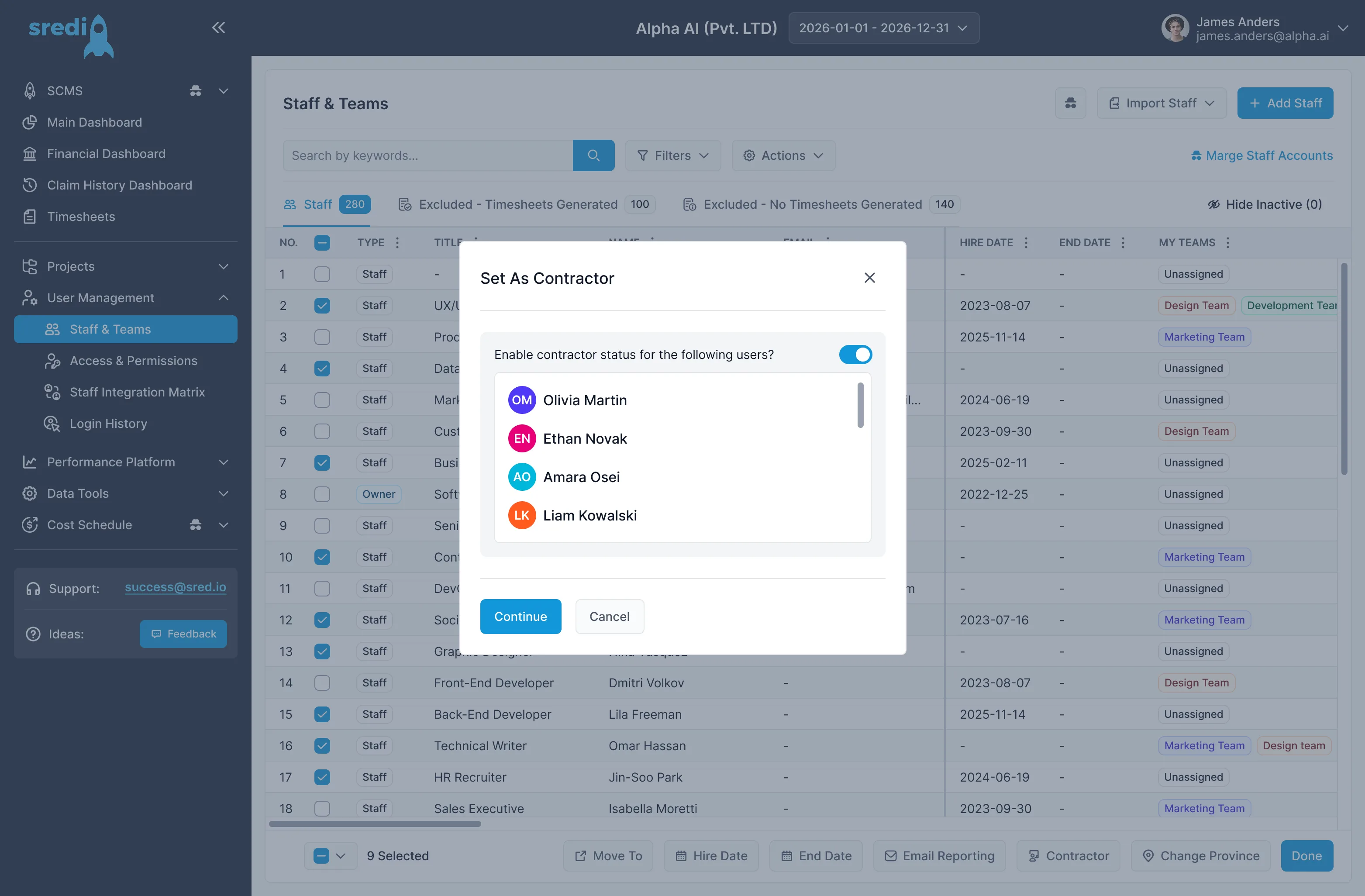
Tick a few people and a bar appears at the bottom. Move them to a team, set a date, switch the weekly emails or mark them as contractors, all in one go.
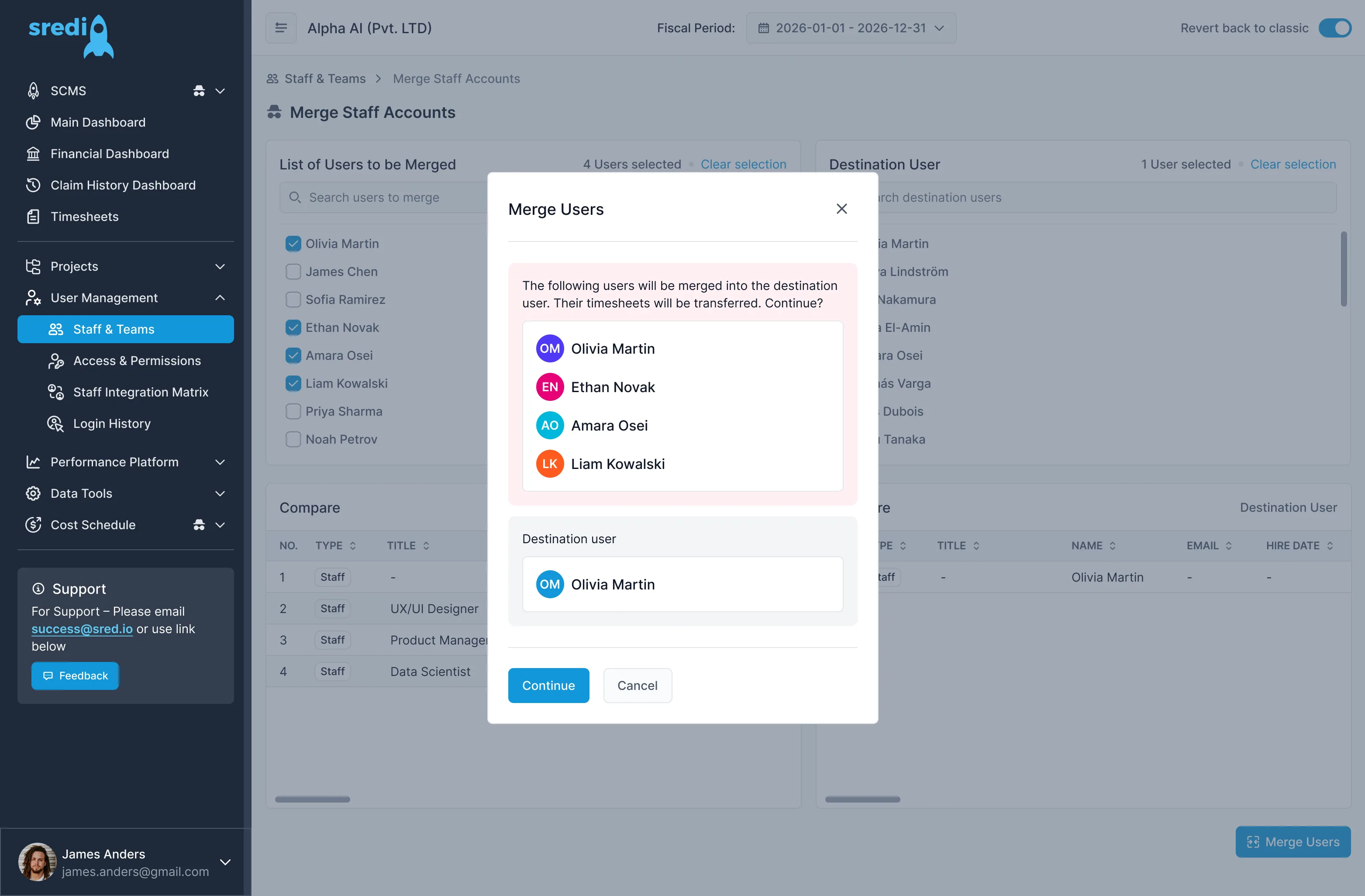
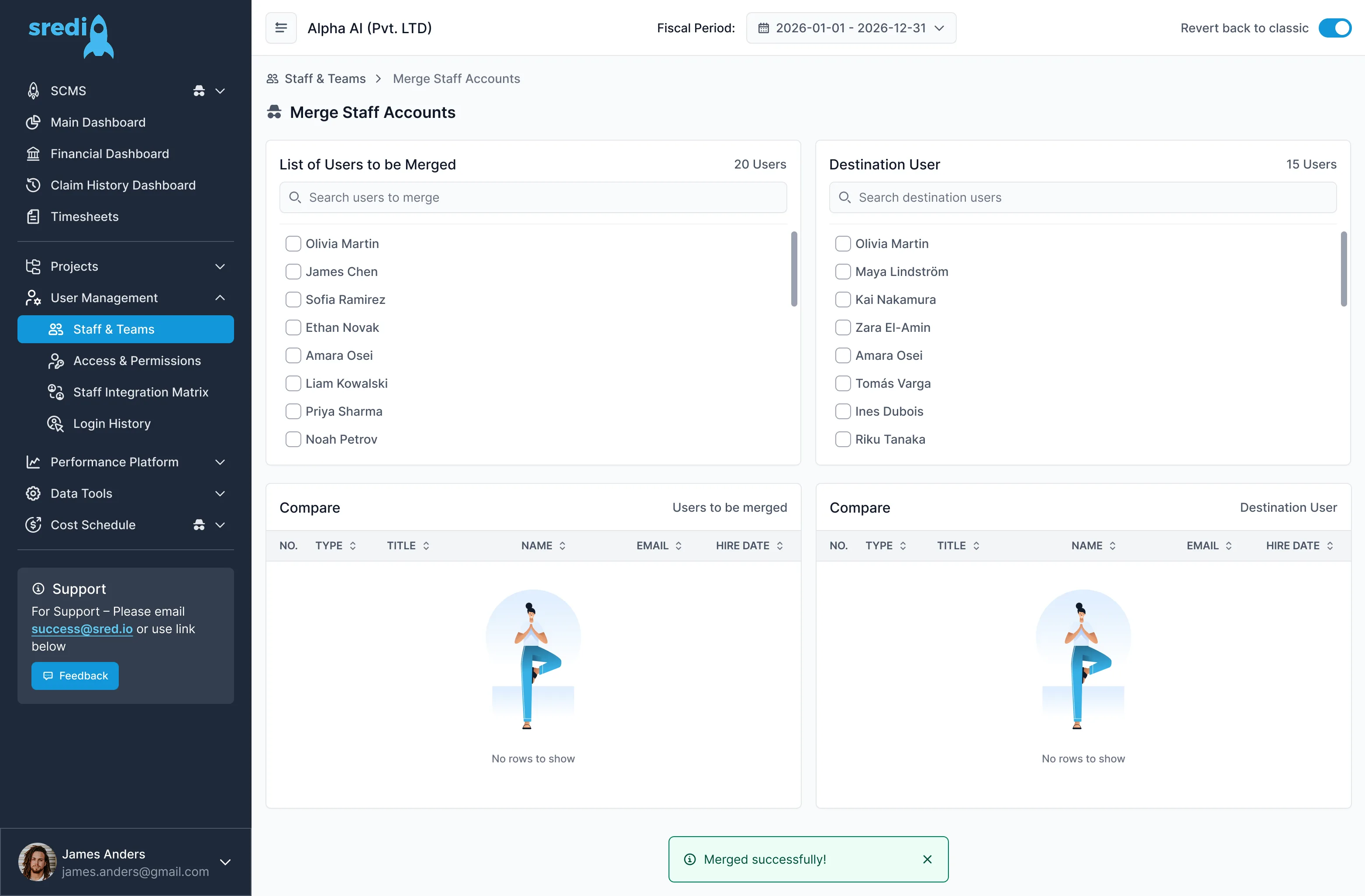
Staff & Teams: merge accounts
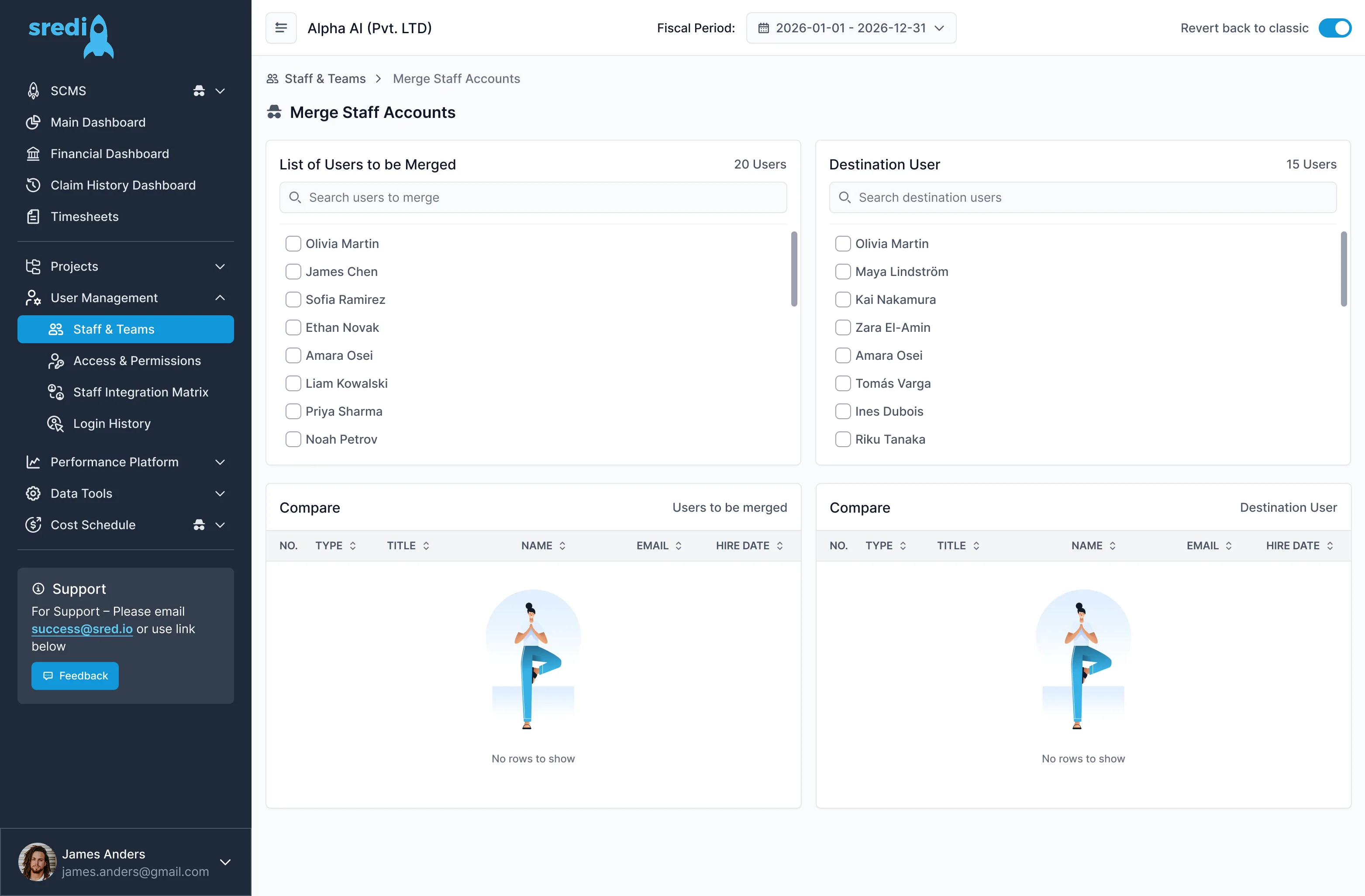
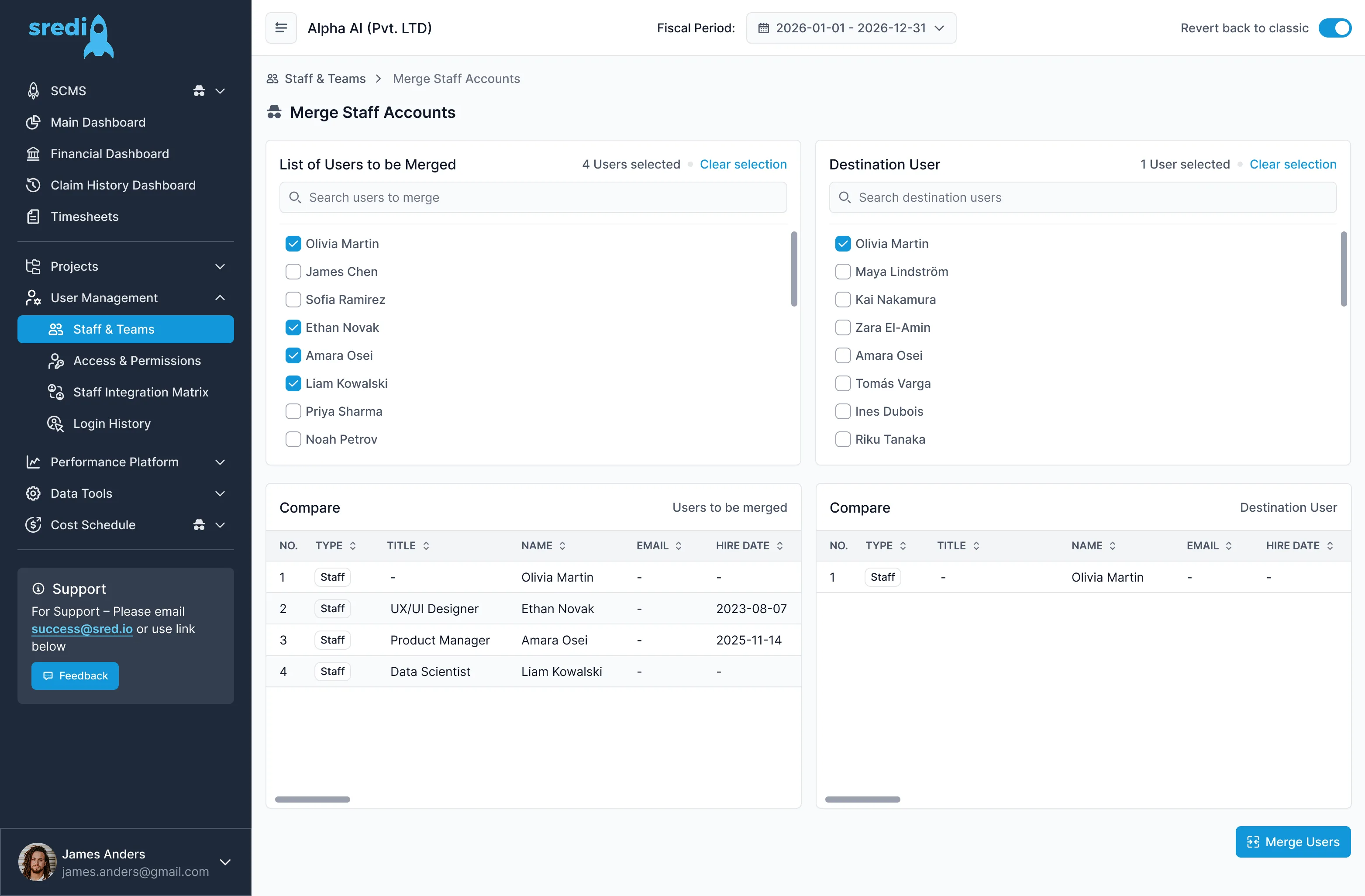
Duplicate people merge into one account. Pick the users, check them against the destination user, and confirm. Their timesheets move with them.
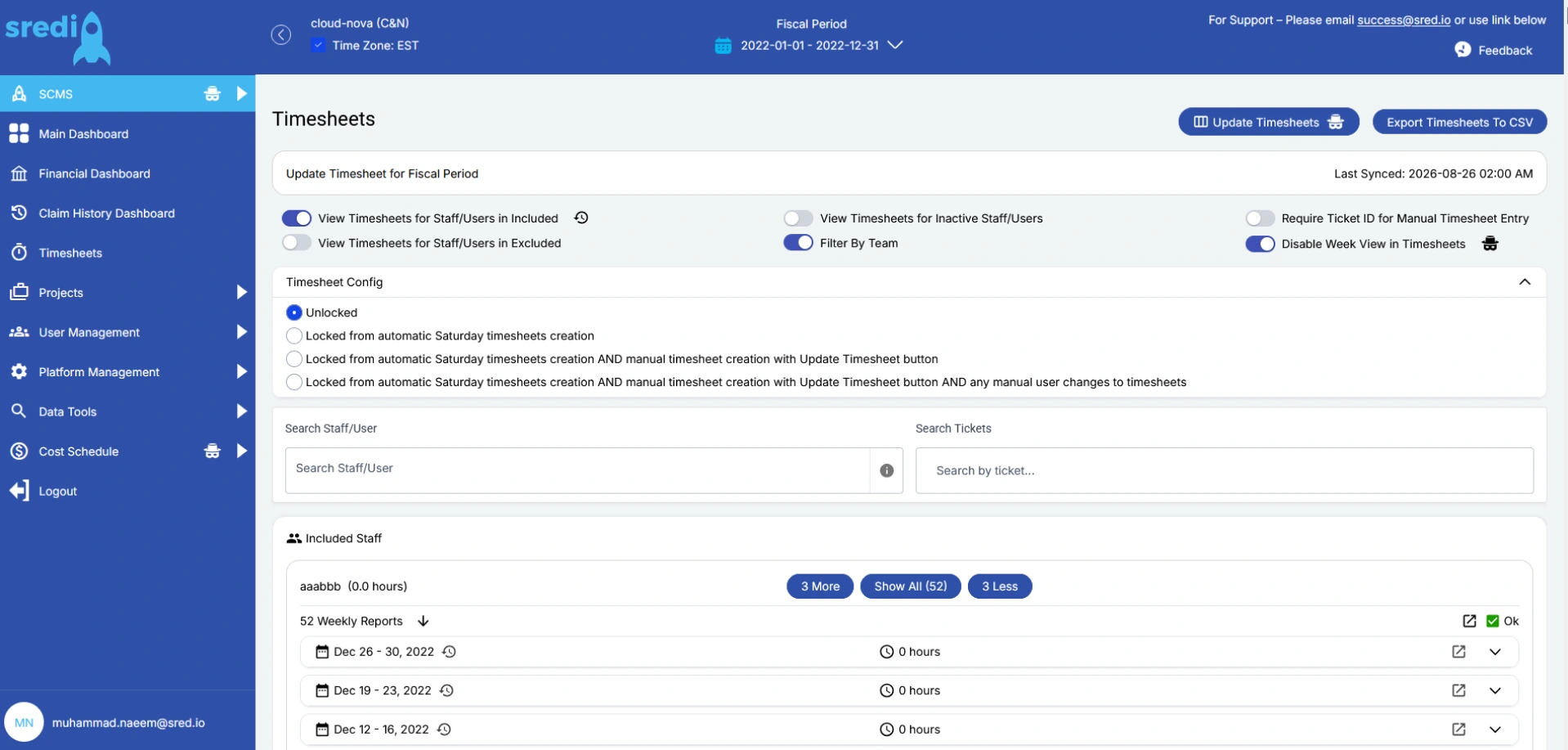
Timesheets: before and after
Before, the toggles, the timesheet config and two search fields sat above the staff list. Now the list starts right under one header, with Filters and Timesheet Config a click away.
Timesheets: weekly hours
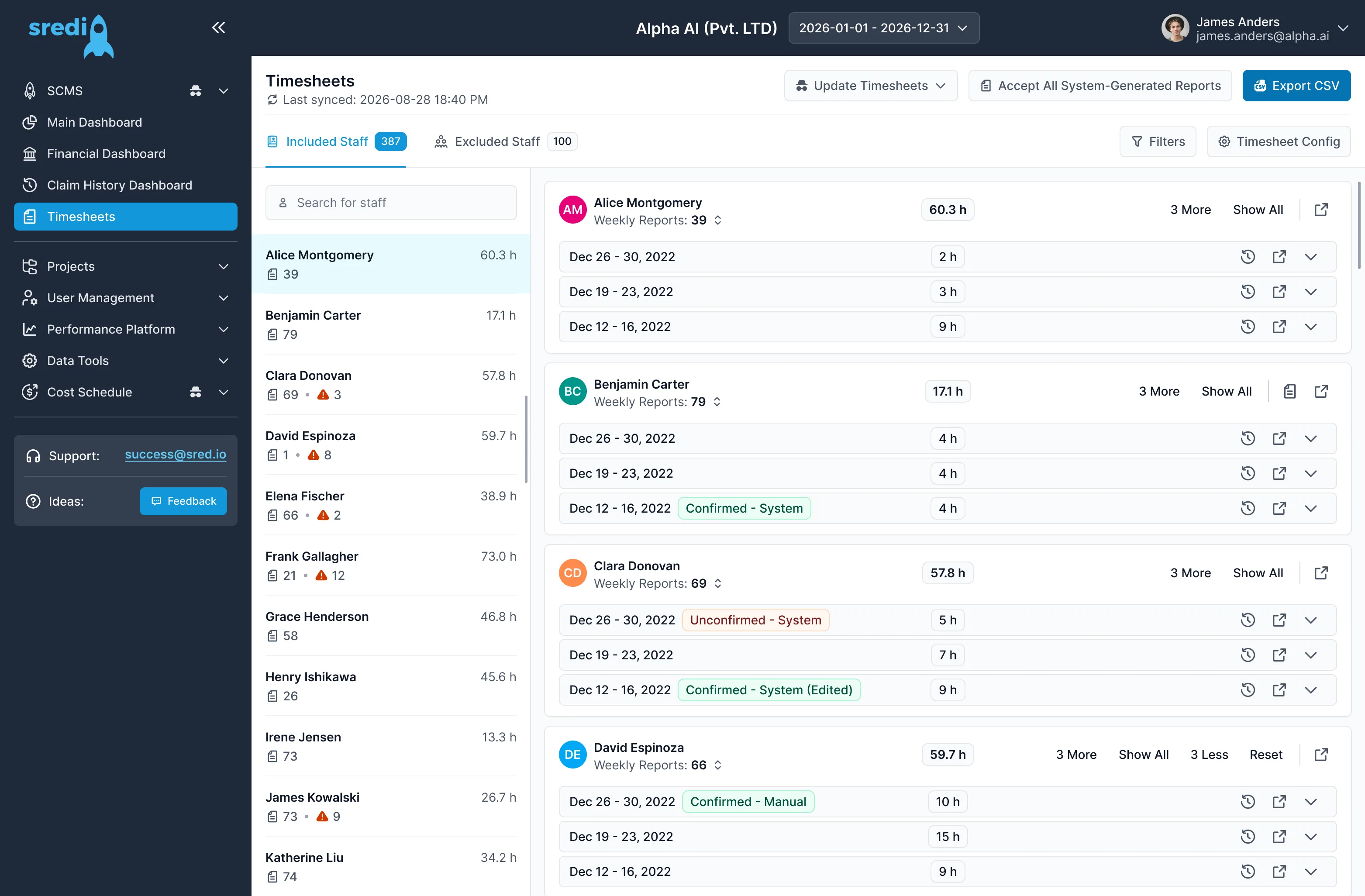
Hours for each person, week by week. Four things to notice.
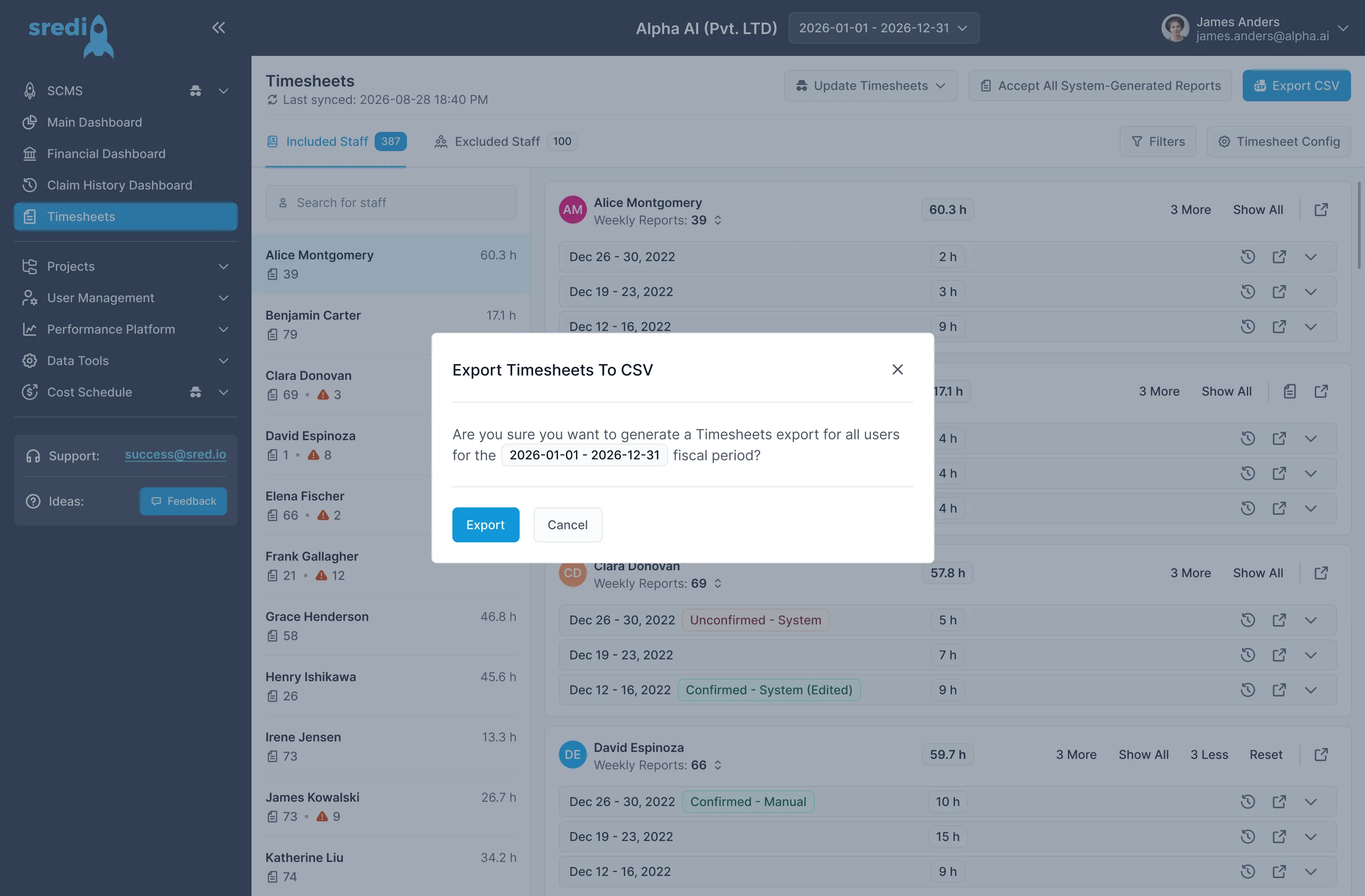
Last syncedWhen the data last synced always sits under the title.Export CSVOne button exports the fiscal period to CSV.Included and excludedTwo tabs with counts: 387 included, 100 excluded.Status on every weekConfirmed - System, Unconfirmed - System or Confirmed - Manual.Timesheets: sync and export
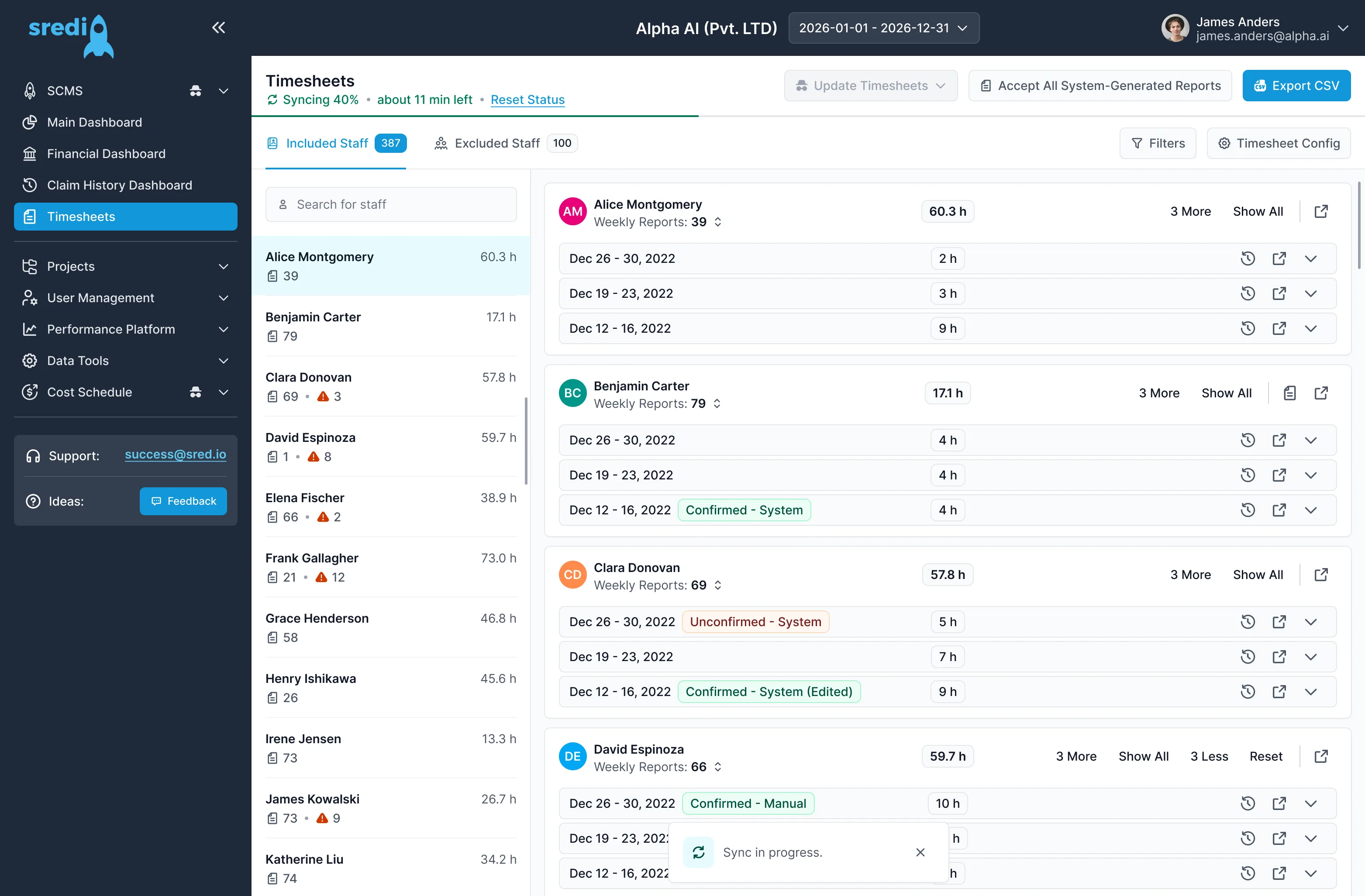
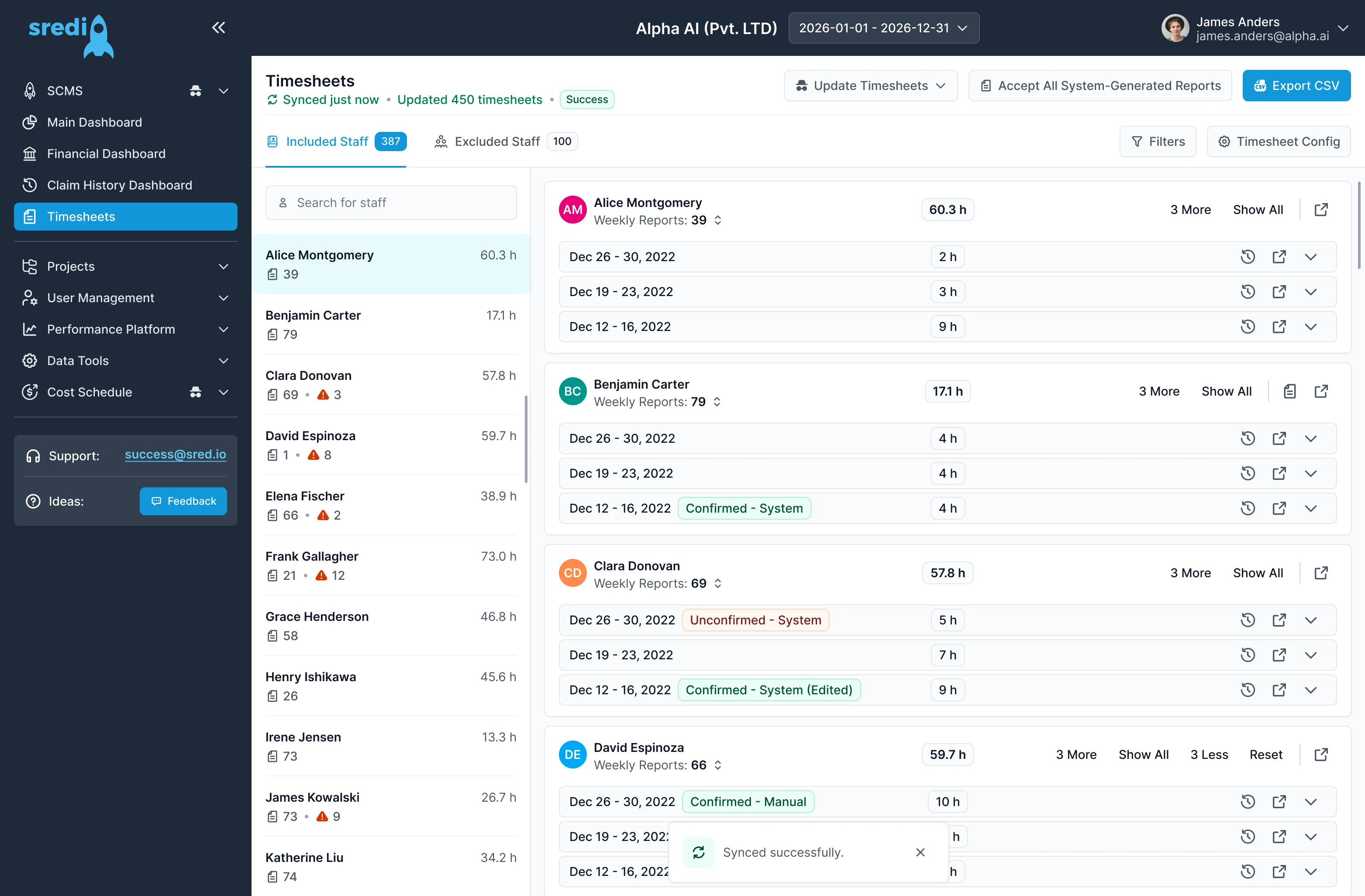
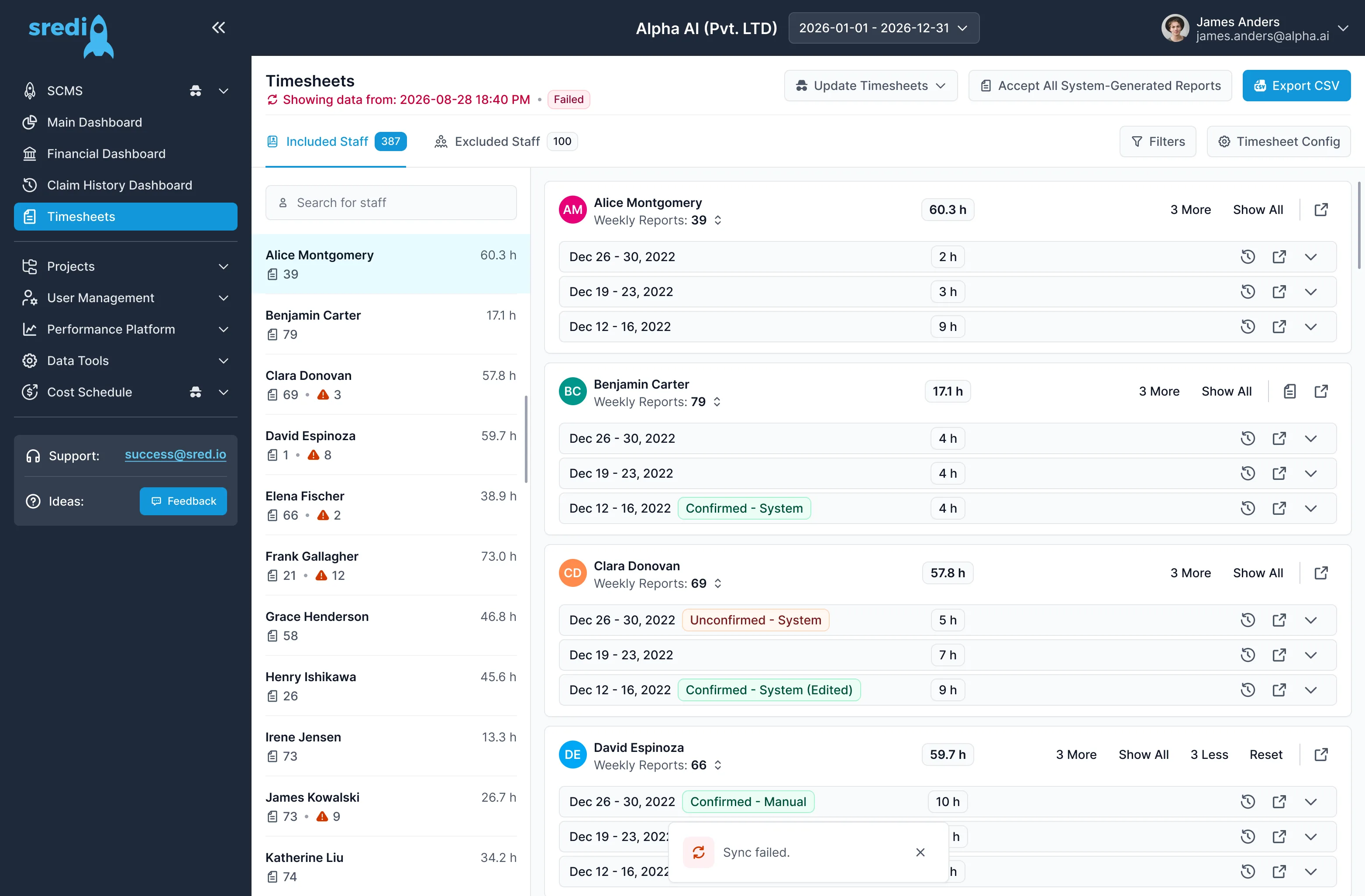
Timesheets sync in the background. The line under the title shows the progress, then Success or Failed, and the last good data stays on screen either way.
Feedback
A short form, opened from the Feedback button in the sidebar, that asks how the platform is working.
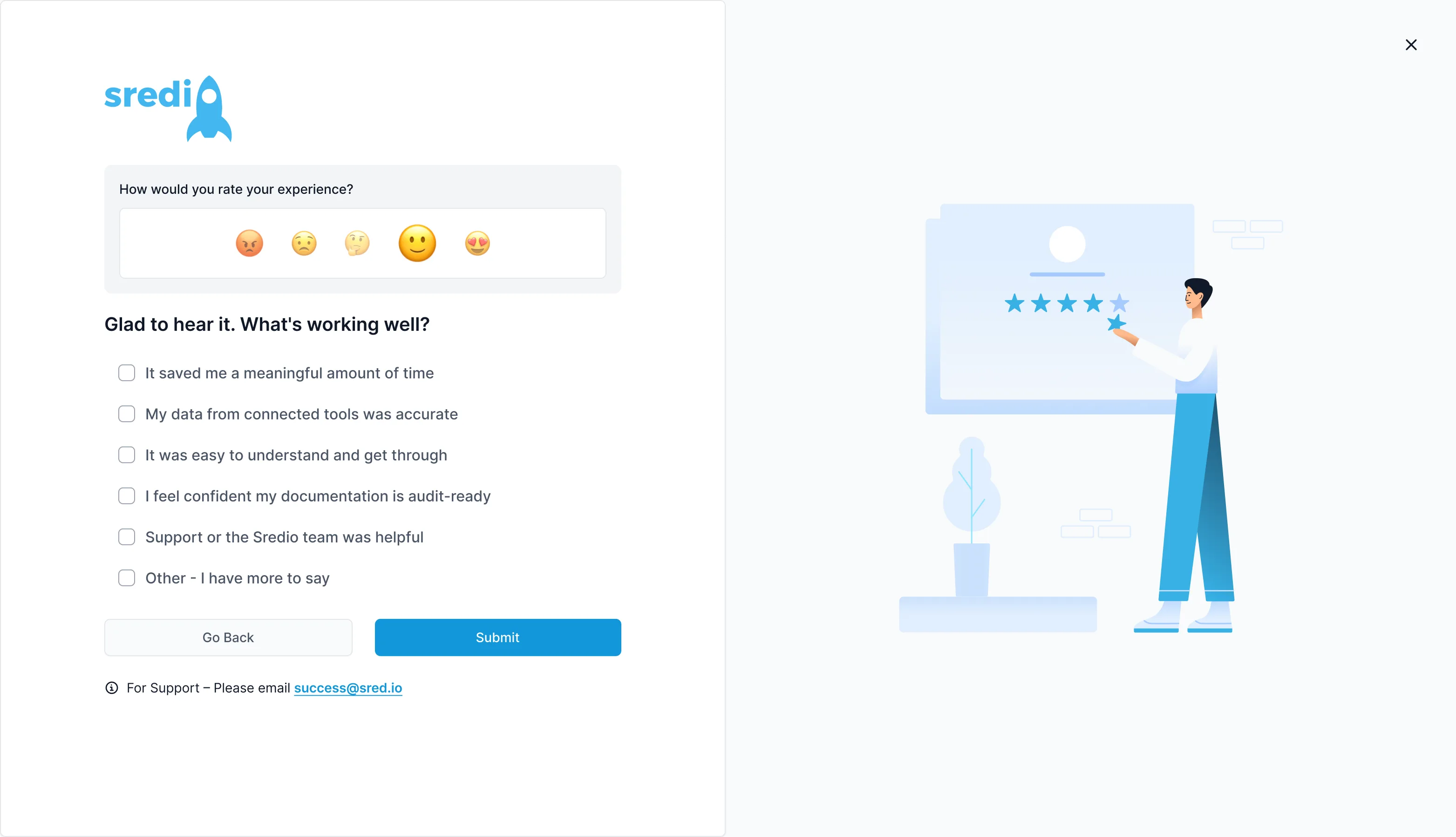 Rate in one tapFive faces, from angry to in love, so a rating takes one tap.A follow up that fitsThe next question answers the rating given. Here, a happy face gets: Glad to hear it. What is working well?Answers in plain wordsSix short reasons to tick, with Other for anything else.Support one line awayGo Back, Submit and a support email sit on the same screen.
Design to code
I manage a front-end developer. Claude Code in Cursor is connected to Figma, so a designed screen becomes production code without a rebuild.
Figma
Screens built from the shared Flowbite components.
Claude Code in Cursor
Reads the Figma file and writes the screen in code.
Production
The front-end developer and I ship it on the same components.